How to Read PDFs on Kindle: Convert to EPUB, Then Send It
A PDF on Kindle keeps the page exactly as printed: the type stays the size it was set at, and the font-size dial does nothing because there's no text underneath to resize — only a fixed image of a page. Convert the PDF to EPUB and the words reflow to fit your Kindle's screen and font size. Convert it here free for the first 50 pages, then send the result straight to your Kindle with Send to Kindle, no cable or account required.
Convert it here, then send it to your Kindle
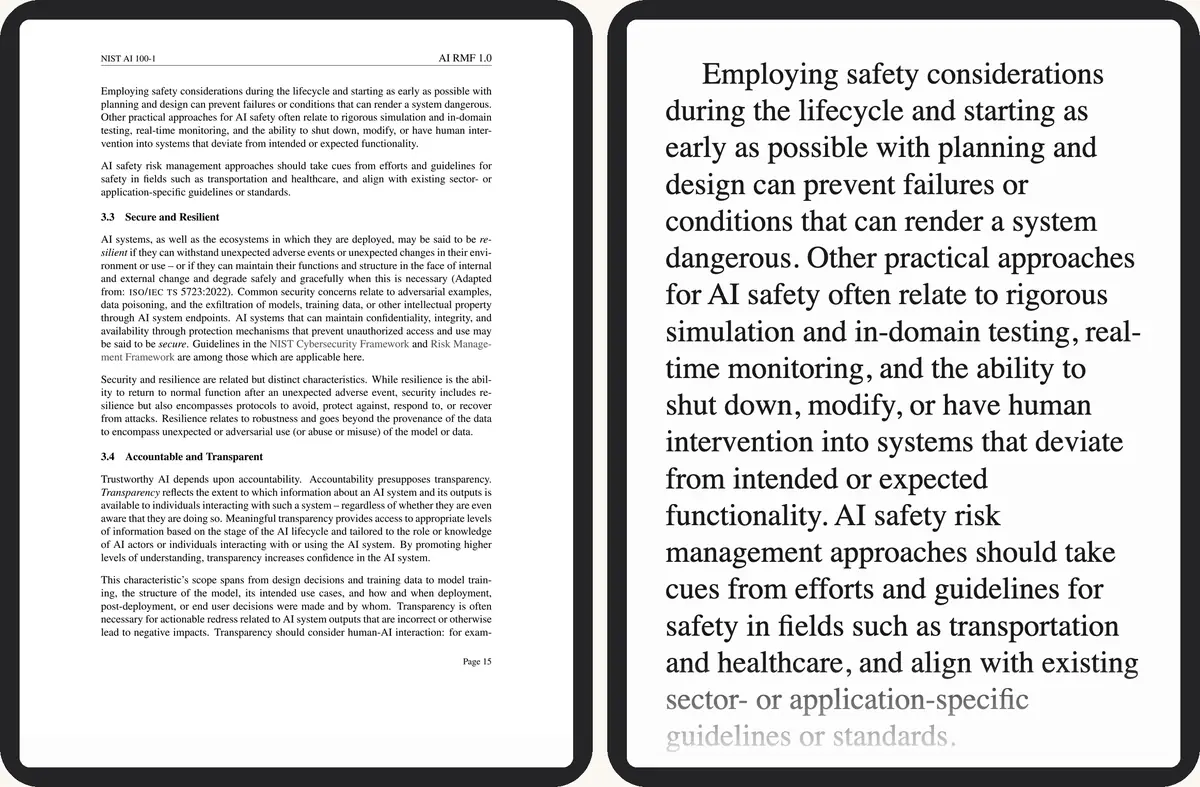
A PDF on a Kindle stays at its printed size. A reflowable EPUB fits the screen and your font size.
or drag and drop here
What changes once it's an EPUB
A PDF is a page, not text: the converter can't resize it without reflowing the words, so a Kindle shows it at one fixed size and leaves zooming to you. An EPUB is text the Kindle's own reading engine lays out, the same way it lays out a purchased book — font size, line spacing and margins all follow your settings.
 1
2
1
2
- Print-size type, the whole page squeezed to the screen
- The same passage at your font size
Have the PDF? Convert it here →
PDF or EPUB on Kindle? Pick by task
Keep the PDF when the exact layout matters — a form you'll print, a diagram-heavy manual, a page you'll cite by number. Convert to EPUB for anything you're reading start to finish: a book, a report, a long article. The font adjusts, lines wrap to the screen, and a multi-column document reads as one column instead of a zoomed grid.
| Feature | PDF on Kindle | EPUB on Kindle |
|---|---|---|
| Font size | Fixed — zoom only | Adjustable |
| Text reflow | No | Yes, fills the screen width |
| Page citations | Match the original | Shift with font size |
| Multi-column pages | Zoomed, one quadrant at a time | Linearised into one column |
Get it onto your Kindle
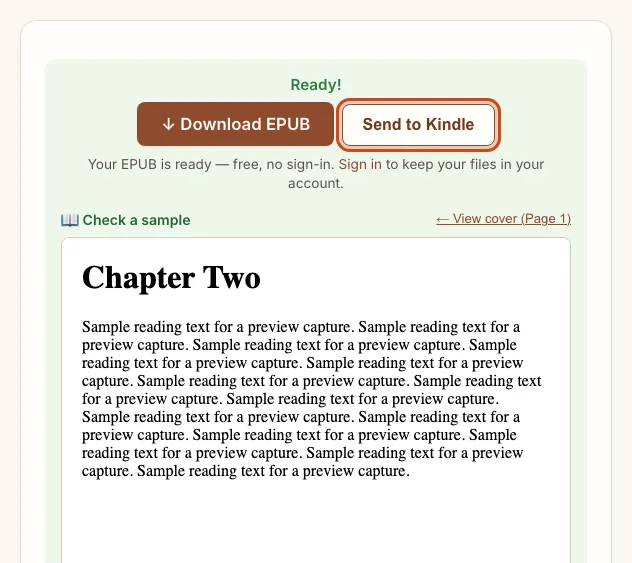
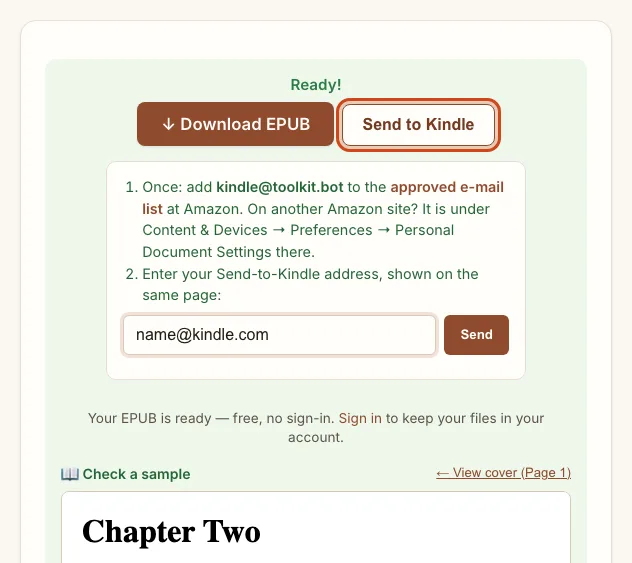
Amazon delivers an EPUB to a Kindle only through its own Send-to-Kindle system — there's no drag-and-drop EPUB support the way there is for a PDF over USB. Three ways to reach it from a downloaded EPUB:
| Method | Needs | Time | Note |
|---|---|---|---|
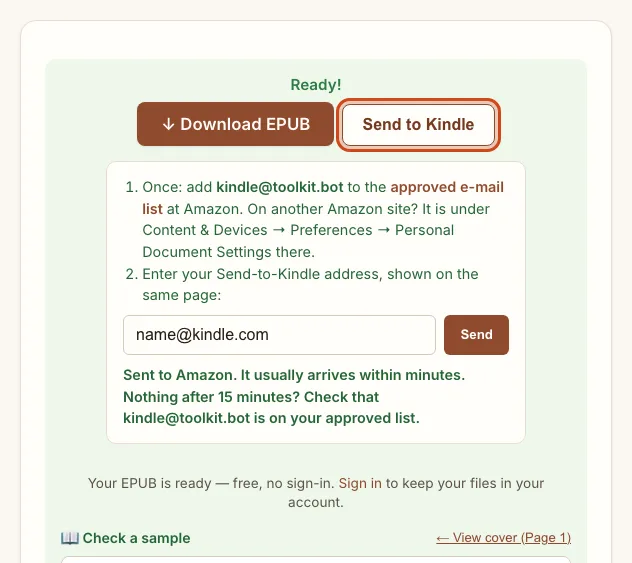
| Send to Kindle, from the result | A one-time approval at Amazon | Minutes | Works on the free preview too |
| Amazon's Send to Kindle page | The same approval, done by hand | Minutes | Upload the EPUB yourself at amazon.com/sendtokindle |
| USB | A cable and a computer | Instant | No Amazon approval needed |
Want this for your own PDF? Convert it here →
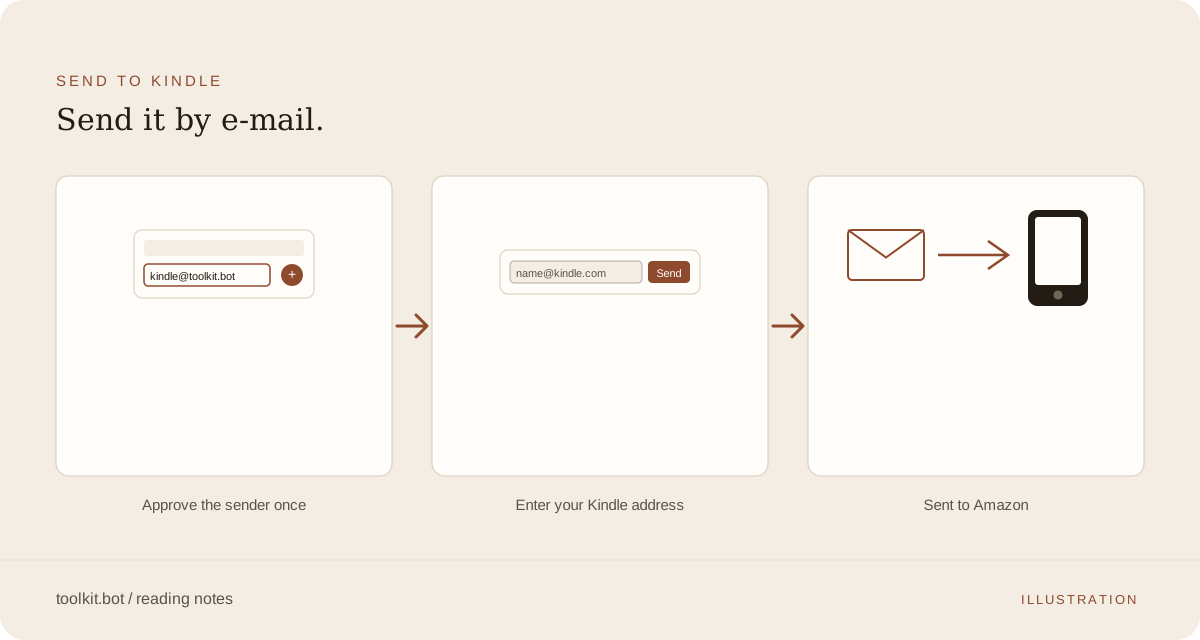
Signed in? Your Kindle address is saved after the first send — find or change it under My account.
Check a difficult page before you rely on it
A readable first page doesn't prove the rest converted cleanly. Check a multi-column page, a footnote, and a table if your PDF has them, and keep the original nearby for comparison.
- Columns read across instead of down
- Footnotes or page numbers interrupt the text
- Scanned pages need OCR
Writing on the page, or working through papers
Need to annotate directly with a pen? The Kindle Scribe guide covers the 10.2-inch screen and sticky-note annotation. Working through a stack of academic PDFs instead? The academic-papers workflow covers two-column layouts, equations and citations. Prefer to convert offline first? Start with the Calibre tutorial.
Frequently asked questions
Is there a size limit for Send to Kindle?
Yes — about 28 MB after encoding, which covers the large majority of converted EPUBs. A larger file still downloads normally; it just won't offer the Send to Kindle button.
Nothing has arrived after sending — what do I check?
Confirm kindle@toolkit.bot is on your approved e-mail list at Amazon (Content & Devices → Preferences → Personal Document Settings). Sends are usually delivered within minutes once that's done.
Does toolkit.bot keep my Kindle address?
Only if you're signed in — it's saved after your first send so you don't retype it, and you can change or remove it under My account. Sent anonymously, the address is used once and never stored.
What if my PDF is longer than 50 pages?
The first 50 pages convert and download free, with no account or card. A free account converts the whole file, five files a month, with a small toolkit.bot mark in the file. A one-time unlock gives a clean copy of one file for $0.99.
Have a PDF for your Kindle? Convert the first 50 pages free, no account or card, and send the result straight there.
Choose the PDF for your Kindle ↑Related: Kindle Scribe guide · Academic papers on Kindle · PDF to EPUB, step by step