Scanned PDF to EPUB: Free Automatic OCR, No Install
A scanned PDF holds photographs of pages, not text — so there's nothing to select, copy or reflow, however carefully the original book or document was printed. Upload it below: OCR on the converter reads each page, rebuilds the words into a real text layer, and reflows the result cleanly on a phone, tablet or e-reader. No settings to tune, nothing to install.
Convert this scan
Scanned books and documents stay blurry or unreadable on phones and e-readers. Our OCR extracts clean, reflowable text with proper chapter headings.
or drag and drop here
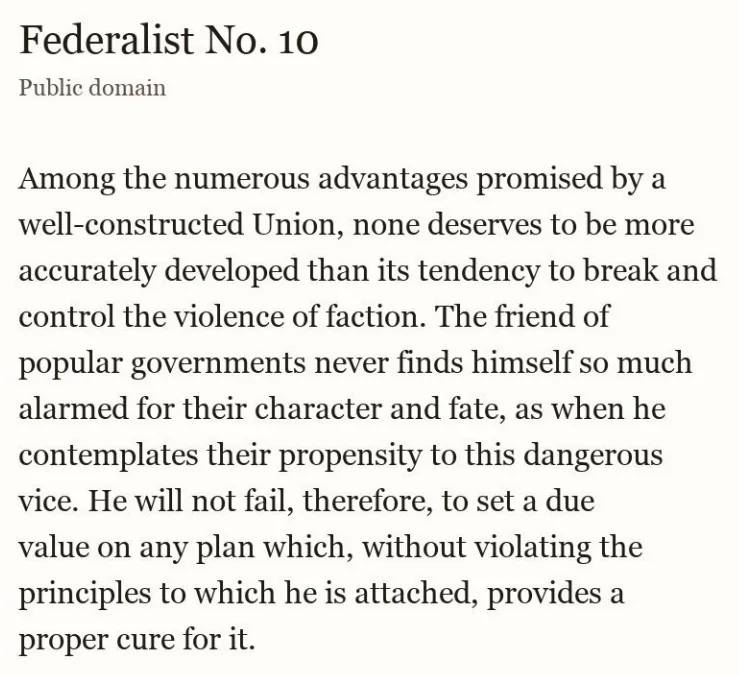
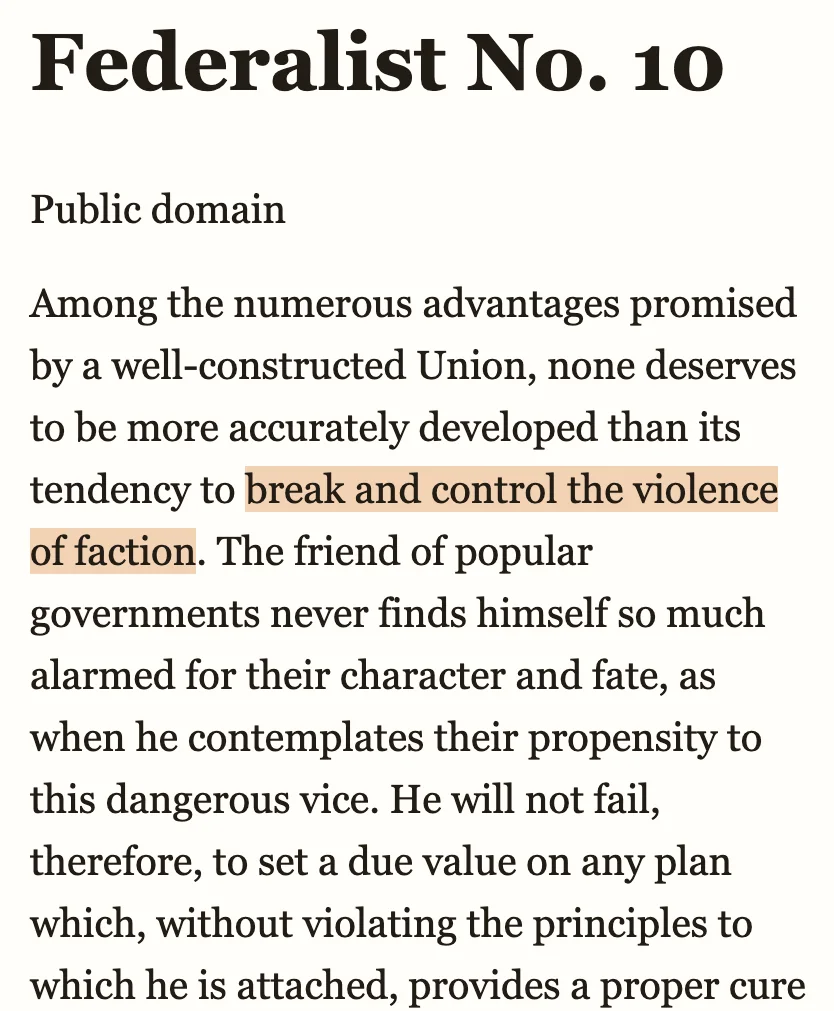
Have the PDF? Convert it here →
How to convert a scanned PDF to EPUB
Three steps — scanned pages just take an extra pass for OCR before the preview is ready:
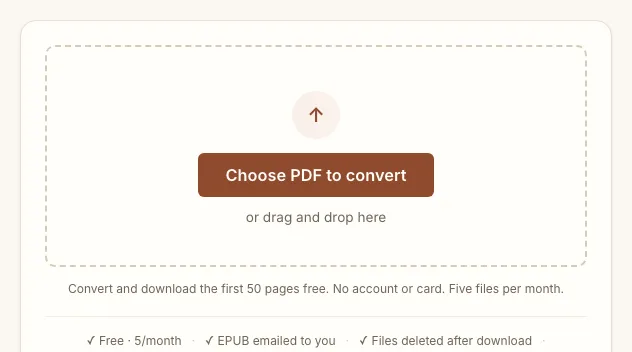
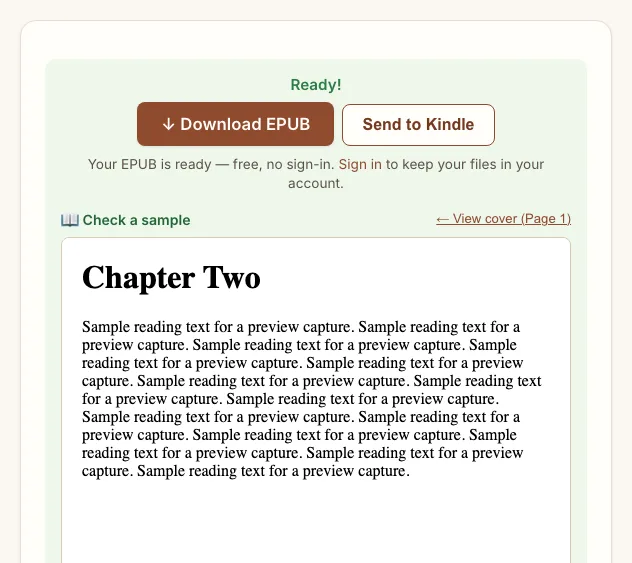
Convert the first 50 pages free, no account or card. A free account converts the whole file, five files a month, with a small toolkit.bot mark in the file. A one-time unlock gives a clean copy of one file for $0.99. Scanned files run a little slower than typed ones, since every flagged page waits for its turn through OCR before the preview is ready.
What happens during OCR
A scanned PDF is any PDF where the pages are images rather than machine-readable text — a photographed book, a form printed then scanned back to PDF, or a phone photo saved as a PDF. You can tell because you can't select or copy a single word on the page.
The converter checks every page for an existing text layer; detection is automatic, nothing to configure. Anything that's pixels only goes through OCR: it finds the character regions, reconstructs words and lines in reading order, and layout analysis infers paragraphs and headings from spacing and font size before the page is packaged into the EPUB.
Scan quality: what to expect
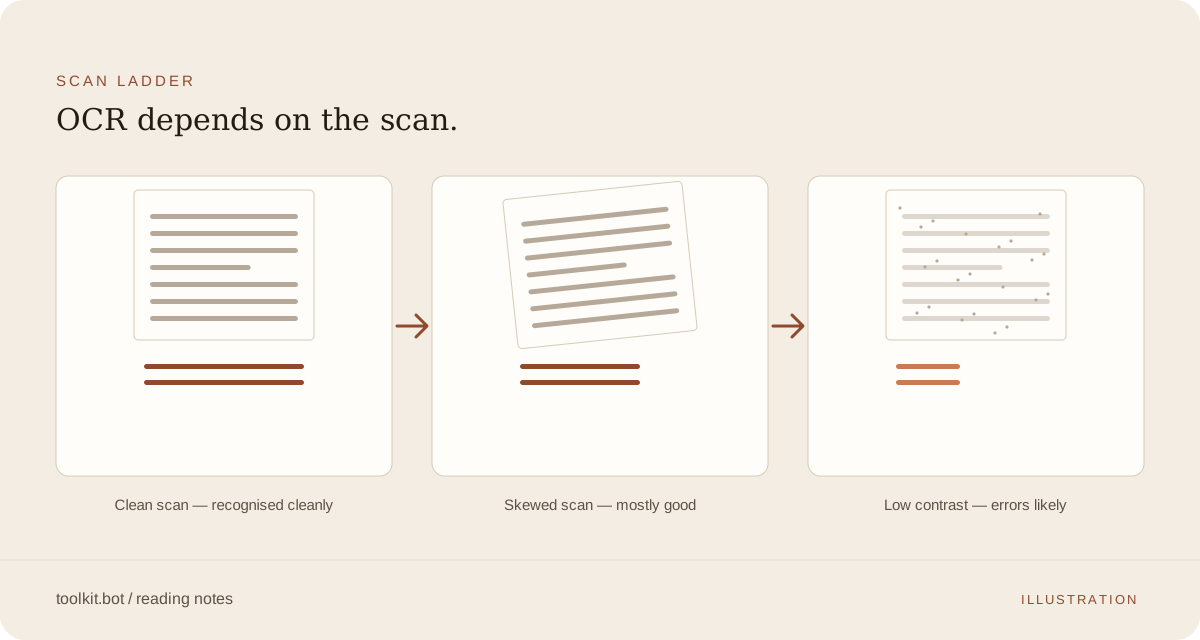
Recognition accuracy follows the scan, not the subject matter or how old the original document is — a flat, well-lit page at 300 dpi or better reads almost perfectly; curl, skew or low contrast all cost accuracy, regardless of whether the text underneath is a century-old book or last week's form.
| Scan quality | What you get | What to do |
|---|---|---|
| Clean, flat, 300 dpi+ | Near-perfect text | Nothing — convert as is |
| Skewed or unevenly lit | Mostly clean, occasional character errors (0/O, l/1) | Re-scan flatter if you can; otherwise check the preview |
| Low-resolution or a phone photo | More errors, still readable | Re-shoot flat and in better light if the preview looks rough |
| Handwriting | Not recognised | Kept as a cropped image, not transcribed |
What OCR can't rebuild
OCR reads characters; it has no record of a scanned page's underlying layout. A few things stay limited:
| On the page | What happens |
|---|---|
| Complex multi-column tables, merged cells | Simple tables usually extract; complex ones are kept as a cropped image rather than guessed at |
| Equations and formulas | Trained on prose, not notation — displayed math is better captured as an image |
| Handwriting and marginalia | Not recognised; omitted or left as unreadable characters |
| Text near the spine or in shadow | Curved, warped text raises error rates in that area |
None of this is guesswork left to chance later: check the free preview against your original before deciding whether the rest of the document is worth unlocking.
What to check in the preview
The free preview shows the whole conversion before you pay for anything, so give it a minute and check it against your original for:
- Reading order: scroll past a page break and confirm a running header or page number didn't land mid-sentence.
- Chapter headings: open your reader's navigation panel — major headings should be clickable entries, not plain paragraphs.
- Footnotes: they should sit at the end of a section, not interrupt the body text.
- A few proper nouns: search for two or three names or technical terms from the original — if those came through clean, the rest of the page usually did too.
What you get in the EPUB
Once a real text layer exists, the file behaves like any other ebook rather than a photograph of a page:
- Search any word or phrase instantly
- Copy and paste quotes or references
- Resize the font on any phone, tablet or e-reader — zooming no longer means a blurrier picture
- Use a screen reader — the text layer is accessible
The EPUB is usually far smaller than the scan it came from, too: the original stores a high-resolution image per page, the EPUB stores text plus any genuine images, so a 20MB scanned PDF often comes back at 200–500KB.
The documents that benefit most are the ones nobody reads as a photo for long: public-domain books scanned page by page, legal or government paperwork printed then scanned back to PDF, old academic papers with no digital original, and receipts or records you need to search rather than squint at.
Frequently asked questions
What does converting a scanned PDF cost?
The first 50 pages convert and download free, with no account or card. A free account converts the whole file, five files a month, with a small toolkit.bot mark in the file. A one-time unlock gives a clean copy of one file for $0.99.
Why does my scanned PDF come back as an empty or garbled EPUB elsewhere?
A converter without OCR can only pull out text already embedded in the PDF. A scanned page has none — it's pixels, not characters — so the result is blank or near-blank. toolkit.bot detects image-only pages automatically and runs OCR on them before assembling the EPUB.
How long does a scanned PDF take to convert?
Longer than a typed PDF, because OCR runs on every flagged page: typically 30–90 seconds for a 20-page document, and 2–5 minutes past 100 pages. The download link appears automatically once it's done — no need to refresh.
Does it handle a PDF that mixes typed and scanned pages?
Yes, automatically. Each page is checked individually — pages with a text layer are extracted directly, image-only pages go through OCR — so the EPUB has consistent, searchable text throughout even when the source document doesn't.
Are my files kept after conversion?
Your scanned PDF and the recognised EPUB are processed securely and deleted after download, or kept for up to 7 days if you unlock the full document. They aren't used for anything beyond the conversion you asked for.
Convert your scanned PDF — first 50 pages free, no account or card required.
Choose a scanned PDF above ↑