Scanned PDF converted to EPUB is blank or garbled
A scanned PDF stores pages as pictures, not text — so you may expect the EPUB to come out blank or unreadable, the way some converters leave it. That's not what happens here: a scanned page with no text layer is recognised automatically, and a source page that's genuinely blank is skipped rather than kept as an empty page in your book.
Convert your PDF to EPUB now
Upload a PDF and get a reflowable EPUB3 that keeps headings, footnotes, tables and images in reading order, so it resizes on any phone, tablet or e-reader. Preview the result before you decide.
Convert a PDF → See a converted paper →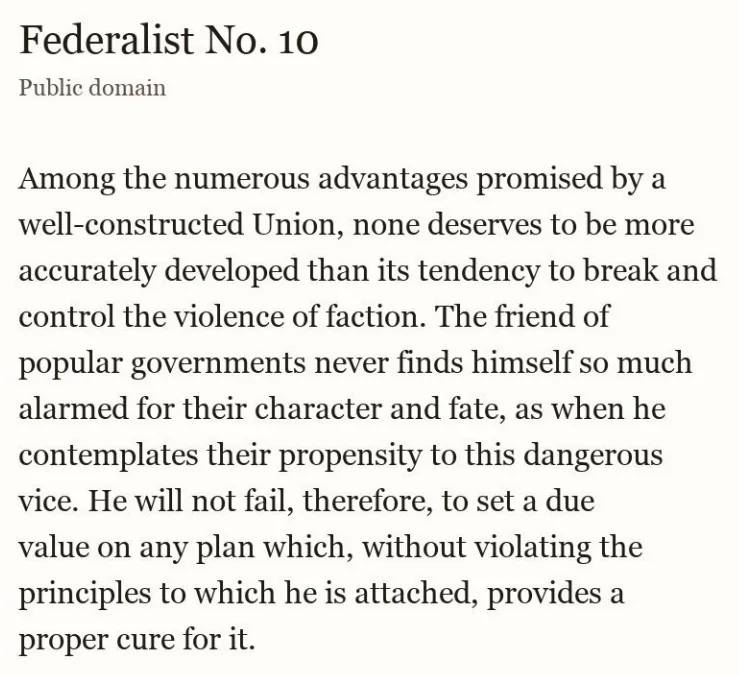 1
1
 2
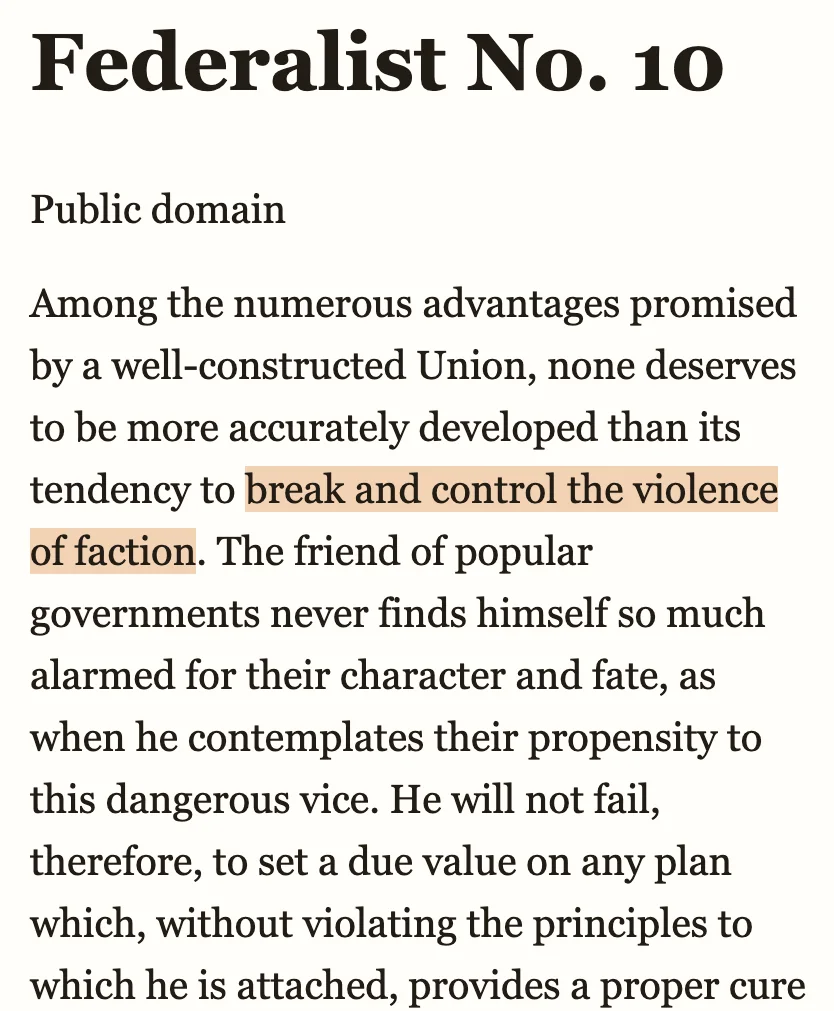
2
- The scan is a picture — no words to select or search
- The recognised text, one phrase highlighted to show it reads correctly
| Scan quality | What you get | What to do |
|---|---|---|
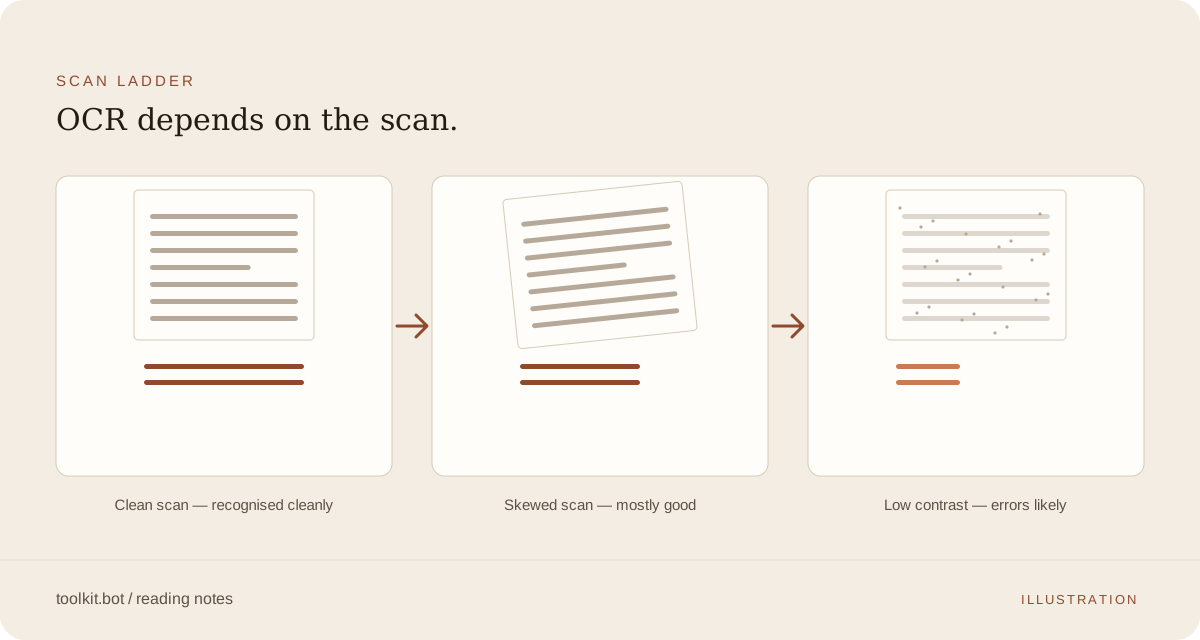
| Clean, flat, well-lit | Recognised cleanly, close to perfect | Nothing — convert as is |
| Skewed or tilted | Mostly clean, occasional character slip | Check the preview; re-scan flatter if it looks rough |
| Low contrast or a phone photo | More recognition errors | Re-shoot flat, in better light, before converting |
Have the PDF? Convert it here →
Why this happens
A scanned page has no underlying letters, only a photograph of one. A converter that only copies an existing text layer finds nothing there, so the page comes out blank. Recognition runs automatically wherever a page has no text, turning the picture into real paragraphs. Separately, a page that's truly blank or nearly blank in the original — a divider, the blank back of a leaf — is left out of the result rather than kept as an empty page, so a shorter EPUB than you expected isn't a sign something was dropped by mistake.
What changes in the EPUB
- Real text, not a picture: every recognised page can be searched, selected and copied
- Resizable font: the page reflows to your chosen size instead of staying print-size
- No empty pages: a genuinely blank or near-blank scanned page is left out rather than kept as a blank page
What to check in the preview
- Search for an exact phrase: pick a proper noun or short phrase from the original — if the preview finds it, that page recognised cleanly.
- A page you expected blank: scroll past a divider or a blank leaf from the original — it should be missing entirely, not sitting there as an empty page.
- Small or dense print: pick the densest page and confirm its text is selectable, not just an image you can zoom.
Getting it onto your reader
Download the EPUB and open it on your phone, tablet or e-reader — recognised pages behave like any other ebook: searchable, selectable, and resized to your chosen font. For scan-quality tips and what still comes through as an image rather than text, see the full scanned PDF to EPUB OCR guide.
Frequently asked questions
Why does my scanned PDF convert to a blank EPUB elsewhere?
A scanned page stores a photograph, not text. A converter that only copies an existing text layer finds nothing to copy, so the page comes out blank. Scanned pages are recognised automatically here, so the text comes through instead.
Why is my EPUB shorter than the original PDF?
A source page that's genuinely blank or nearly blank — a divider, the blank back of a leaf — is left out of the result rather than kept as an empty page. Check the page count against the original before assuming a page was lost by mistake.
Can a low-quality scan still convert to EPUB?
Yes, but accuracy follows the scan: clean, flat, well-lit pages recognise almost perfectly, while a skewed or low-contrast phone photo produces more errors. Check the free preview against your original before deciding the rest of the document is worth unlocking.
Convert your scanned PDF with text recognised.
Upload your scanned book or report and download a reflowable EPUB where scanned pages become real text.