Before you start
You need a PDF saved on your phone or computer and a browser. No account is needed to convert or to download the free result.
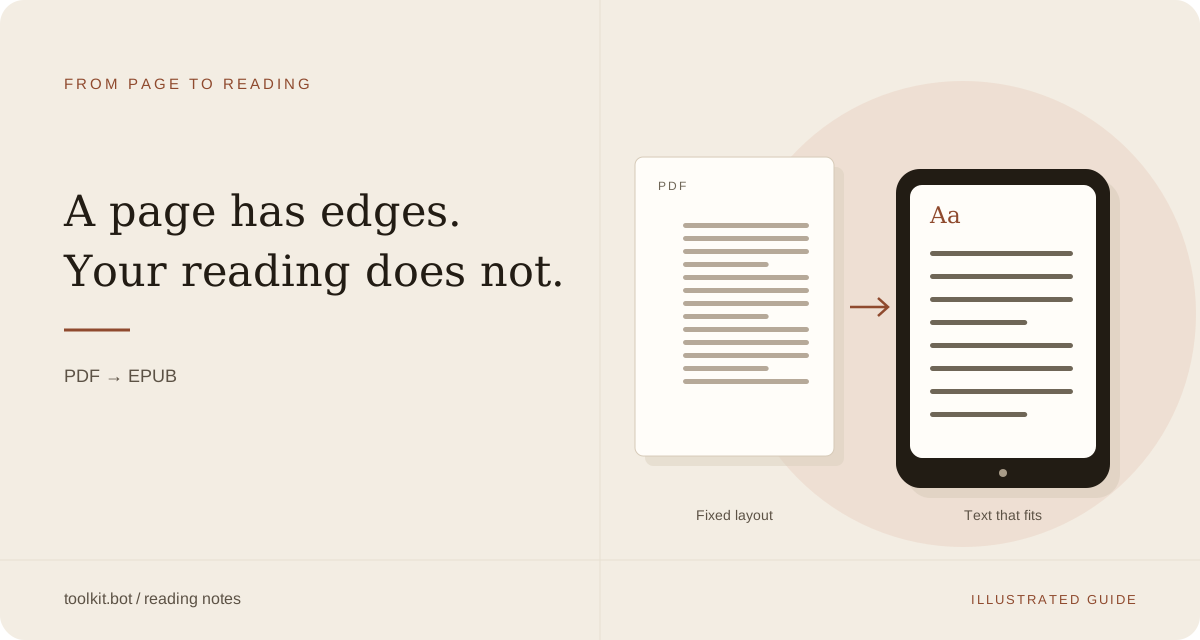
PDF preserves a page layout; EPUB lets the text wrap to your screen. That makes EPUB useful for reading books, reports, and papers at a larger font size. Keep the original PDF when you need exact page references or a faithful view of a diagram.
Scanned pages need text recognition (OCR), which runs automatically. Clear scans give it a better starting point. Complex tables, equations, and illustrations may remain images when they cannot be reconstructed confidently.
1. Upload your PDF
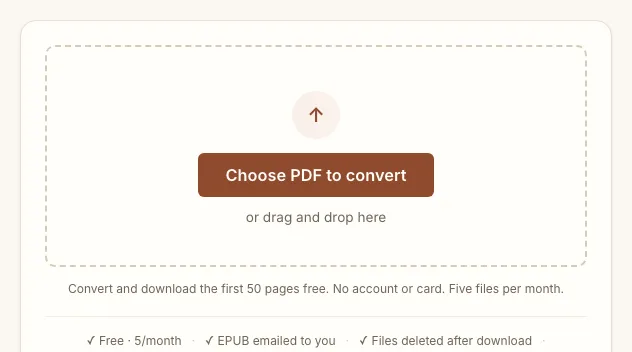
Use the upload box above to choose a PDF, or drag a file onto it. On a phone, look in Files or Downloads. Keep this page open while the file uploads.
2. Check the preview
Once the conversion finishes, a preview appears here. Processing time depends on the document: scanned pages and complex layouts take more work. If you want to leave the page, use the notification option shown after upload.
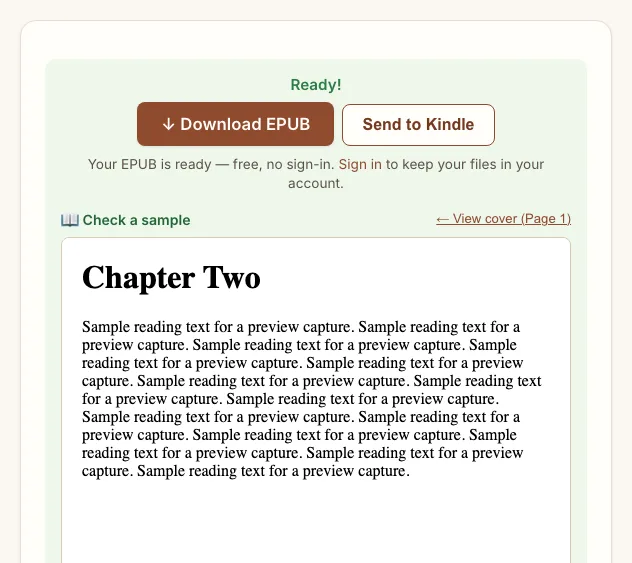
Check a page with ordinary paragraphs and one with a difficult layout. Do columns read in order? Are headings separate from the text? Are figures and footnotes present?
3. Download the EPUB
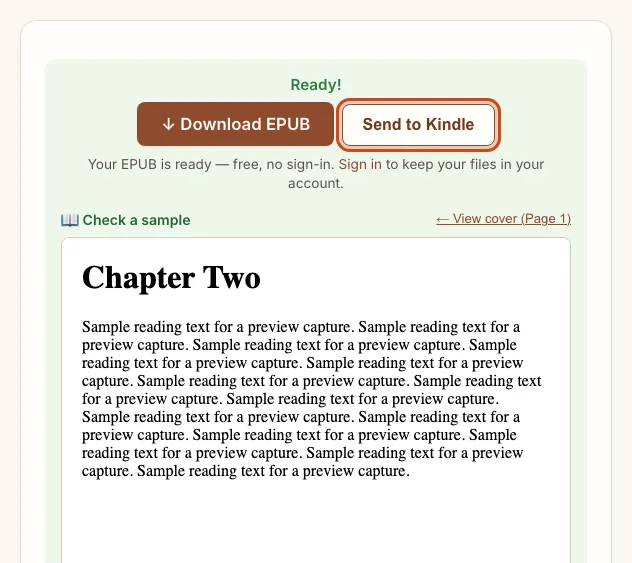
Press the Download EPUB button shown in the panel above. The free pages download immediately, no account needed. If a longer document only shows part of it, see the next step.
4. Check whether you need the whole document
The upload box shows how many pages convert free. If your PDF runs longer, the free download is a preview of those pages only; signing in free converts the whole file, with a small toolkit.bot mark, and a one-time unlock gives a clean copy of one file for $0.99. Signed in, your converted files and a saved Send-to-Kindle address are kept under My account.
5. Save the EPUB
Press download and save the .epub file. On a computer, check Downloads. On a phone, save it to Files or open it with your reading app.
6. Open it on your reader
Kindle
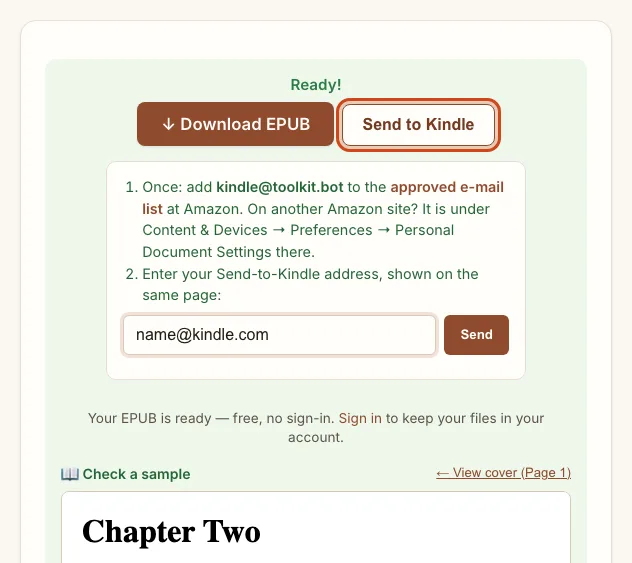
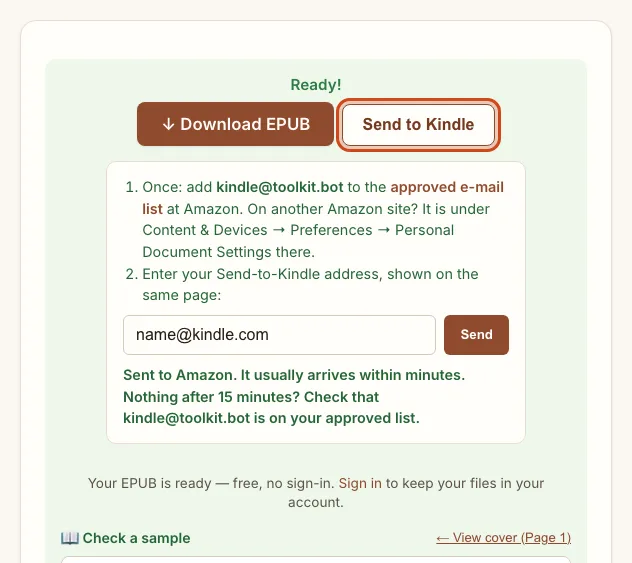
Want this for your own PDF? Convert it here →
Prefer to do it yourself, or don't see the button? Upload the same EPUB at Amazon's own Send to Kindle page, or connect the Kindle by USB and copy the file across. Reading EPUB on Kindle Scribe covers every route in detail.
Kobo and other readers
| Reader | Fastest route | Needs |
|---|---|---|
| Kobo | USB transfer | Cable and a computer — see reading a PDF on Kobo |
| iPhone, iPad, or Mac | Open directly in Apple Books | Nothing extra — see the Apple Books guide |
| reMarkable | USB, the reMarkable app, or a browser transfer | See reading a PDF on reMarkable |
| Nook | USB transfer | Cable and a computer — see reading on a Nook |
On Kobo, a cable isn't the only way in: turn on Settings → Beta features → Web browser, and a downloaded EPUB lands straight in My Books.
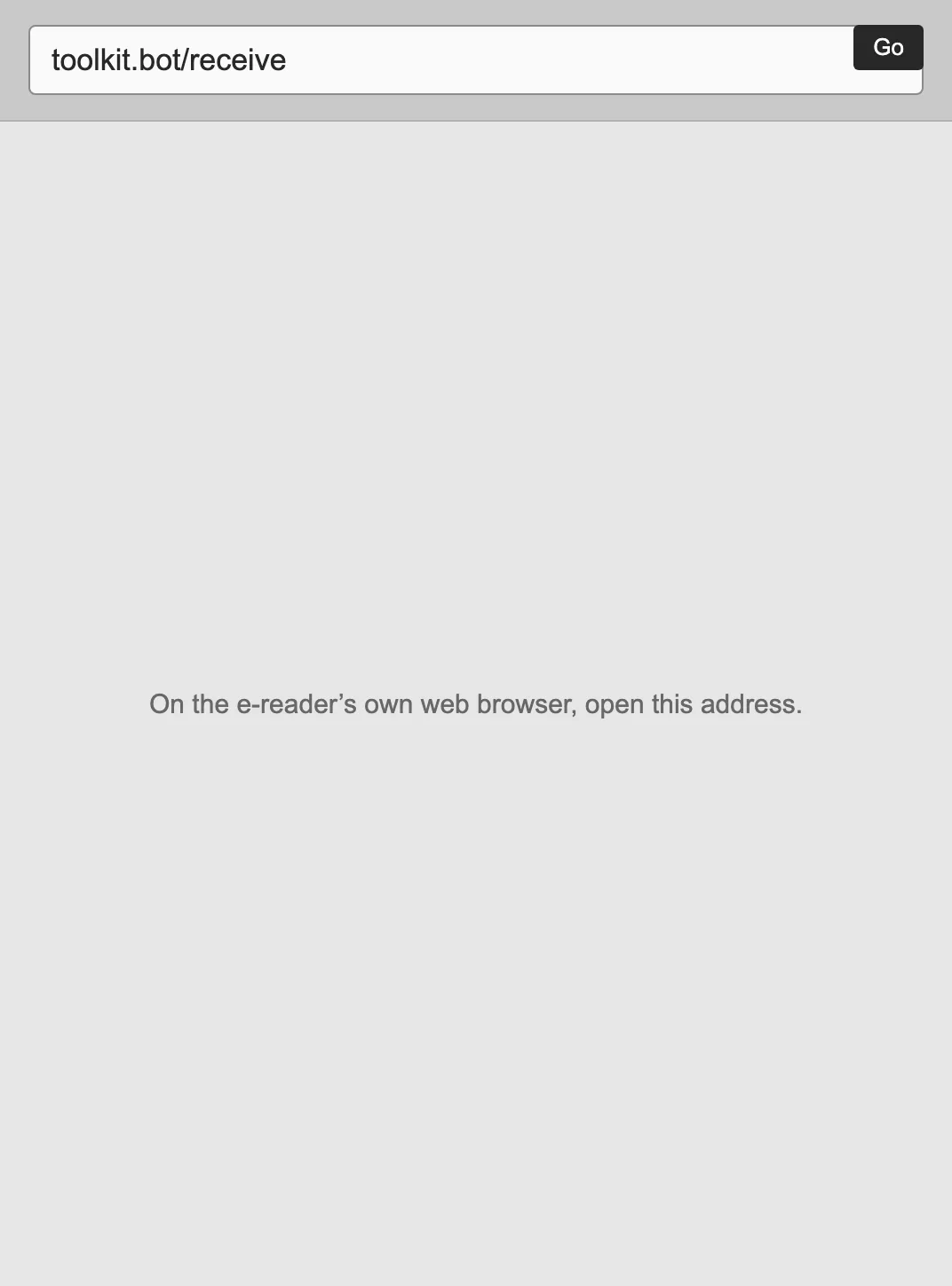
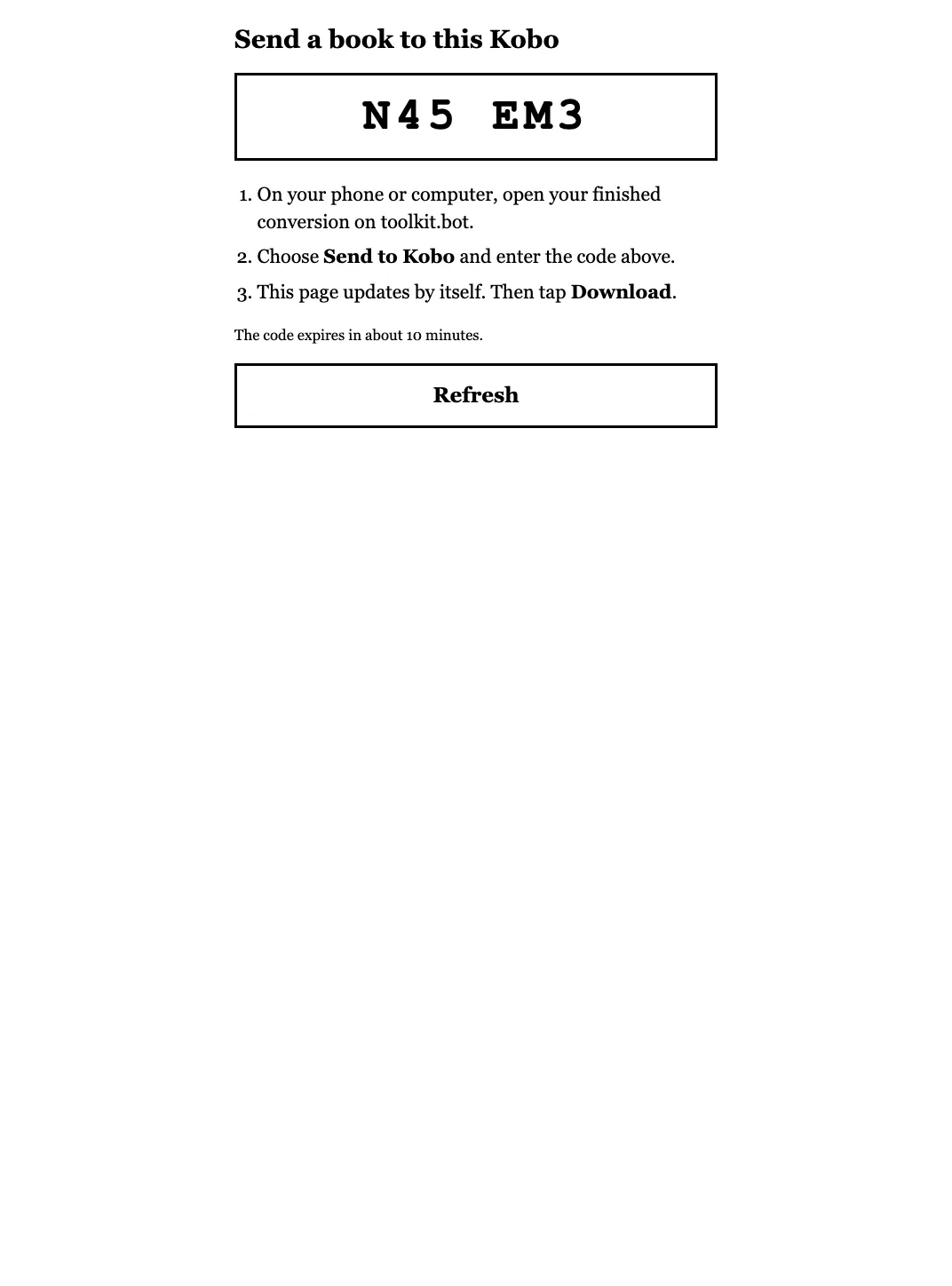
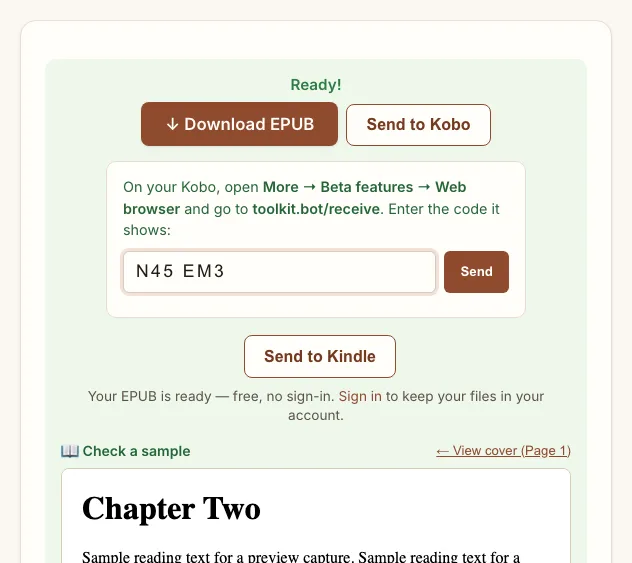
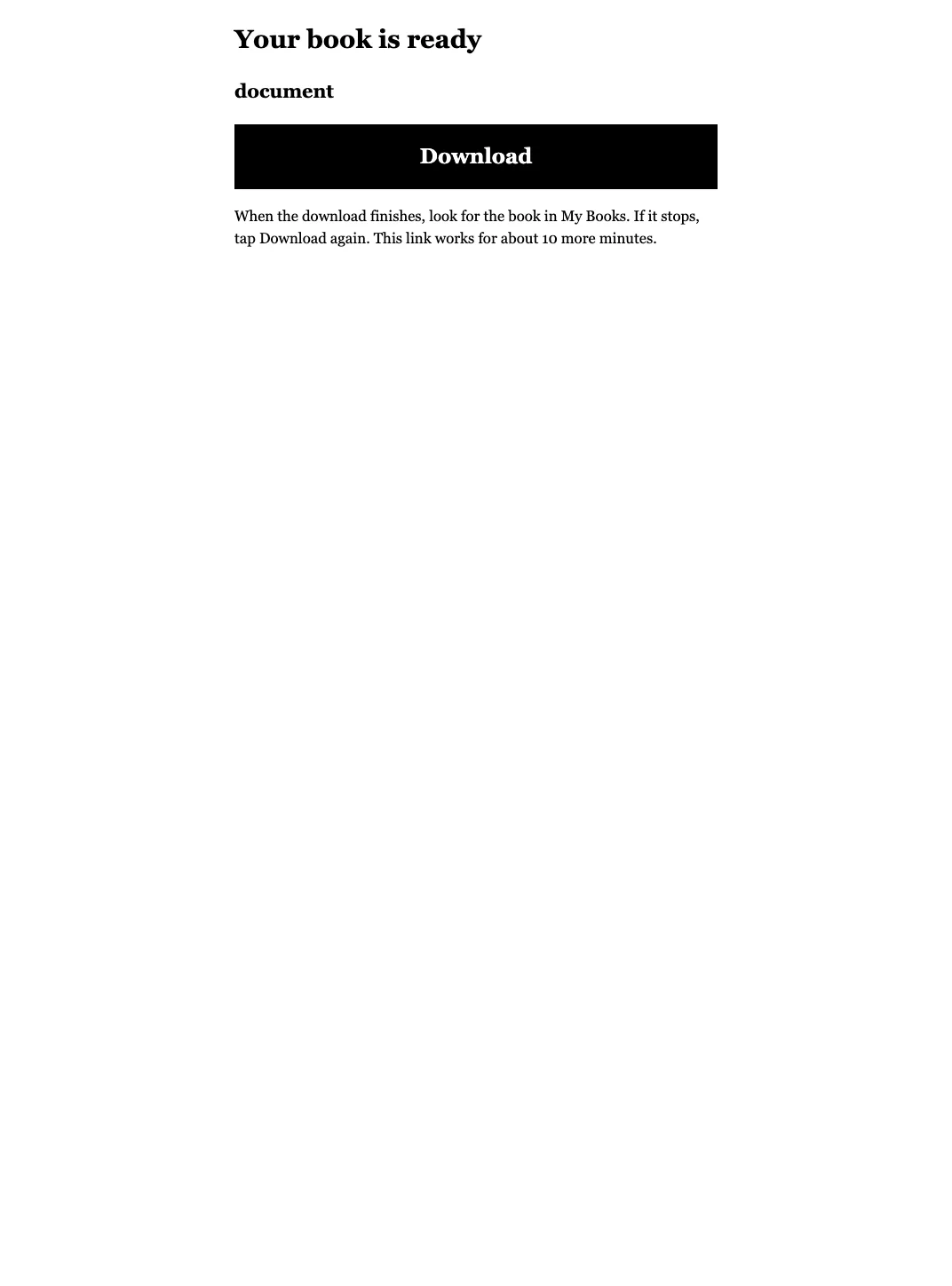
Want this for your own PDF? Convert it here →
If the result looks wrong
A preview is a chance to check the parts of your document that matter. Conversion quality depends on the source; these checks help you decide whether to use the EPUB or keep the original PDF alongside it.
- Sentences jump between columns: compare the reading order with the source. Follow the two-column troubleshooting guide.
- Footnotes interrupt paragraphs: check the note and its reference together. See footnotes and page numbers in converted EPUBs.
- Blank pages or garbled words: check whether the scanned letters are legible. A clearer source scan can help; see converting scanned PDFs with OCR.
If you started with Calibre, the Calibre conversion tutorial covers settings to try before switching tools.
Common questions
Does the EPUB keep my images and tables?
Images are included. Tables are reconstructed where possible; complex content may be included as a cropped image when it cannot be recreated confidently. Check the preview against the original.
Can I convert a scanned PDF?
Yes. OCR runs automatically on scanned pages. Clear, legible scans work better than blurred or damaged pages, and recognition errors can still occur.
What if I only want to test it?
Upload a PDF and check the free preview without signing up. The upload box shows the page allowance. The free result downloads without a sign-in.