How to Read a PDF on reMarkable 2 and Paper Pro: Convert to EPUB First
 1
2
1
2
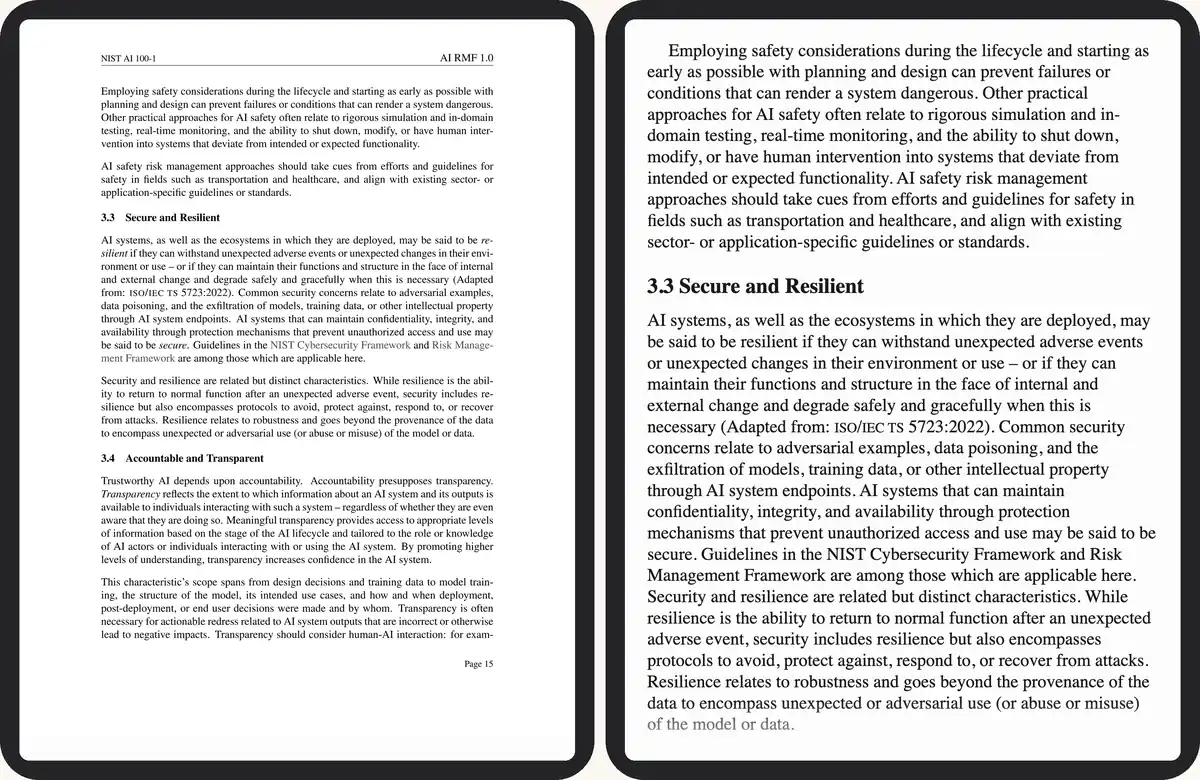
- Print-size type, the whole page squeezed to the screen
- The same passage at your font size
reMarkable shows a PDF as a fixed page: the layout stays exactly as printed, there is no font-size control, and a two-column paper means zooming in, reading down, then scrolling back for the second column. Both the reMarkable 2 and the Paper Pro read EPUB natively since firmware 3.0, so converting the PDF first gets you text that reflows to whatever size and line length you read best.
Have a PDF for your reMarkable? Convert it here
Manuals, papers and scanned books stay tiny on e-ink as PDF. A reflowable EPUB fits the screen and your font size.
or drag and drop here
Have the PDF? Convert it here →
Keep the PDF or convert?
Not every file is better as EPUB. reMarkable's whole appeal is the pen, so if you expect to mark a document up line by line, the PDF usually serves you better:
| Document type | Better as |
|---|---|
| A report, a novel, a long article you'll read start to finish | EPUB — reflows to your font size |
| A form, a slide deck, or anything you annotate at exact page positions | PDF — your pen marks stay where you drew them |
| A two-column paper or a scanned book | EPUB — columns merge into one flow, scans become real text |
That's the trade-off: an EPUB annotation follows the reflowed text, so changing font size afterwards can shift a note out of place, while a PDF annotation sits at a fixed page position no matter what you change. Many reMarkable owners keep both — the EPUB to read, the original PDF on hand for the pages they expect to mark up heavily.
reMarkable 2 vs reMarkable Paper Pro
| Feature | reMarkable 2 | reMarkable Paper Pro |
|---|---|---|
| Screen size | 10.3 in | 11.8 in |
| Resolution | 1872×1404, 226 ppi | 2160×1620, 229 ppi |
| Colour display | No (greyscale) | Yes (colour e-ink) |
| EPUB support | Yes (firmware 3.0+) | Yes (native) |
| Stylus | Marker or Marker Plus (eraser tip); no charging | Marker or Marker Plus (eraser tip); no charging |
| Frontlight | No | Yes (adjustable) |
| Type Folio keyboard | Yes (accessory) | Yes (accessory) |
| Thickness | 4.7 mm | 5.1 mm |
| Storage | 8 GB | 64 GB |
| Battery life | ~2 weeks | ~2 weeks |
| Weight | 403 g | 525 g |
| Released | 2020 | September 2024 |
The reMarkable 2 is the thinner, lighter, more affordable option, best for black-and-white reading and writing in good light. The Paper Pro adds colour, a frontlight for evenings, a larger page and more storage. Both run the same firmware, so everything below about reading and annotating EPUB applies to either.
Reading and annotating on reMarkable
- Typography: set the font, size, line spacing and margins from the text icon in the toolbar — do this before you annotate.
- Highlights and notes: the highlighter snaps to text; freehand notes sit in the margins. Because notes anchor to the page layout, changing font size afterwards can shift them — the device warns you first.
- Export: open the file in the app and choose Share to get an annotated PDF with your handwriting embedded.
- Lighting: the reMarkable 2 has no frontlight, so read it in ambient light; the Paper Pro's adjustable light covers evenings.
Transferring the EPUB to reMarkable
There is no send-to-device address for reMarkable, unlike some e-readers — the file always goes through an app or the web uploader:
| Method | Needs | Time | Note |
|---|---|---|---|
| Desktop app (Mac or Windows) | App installed, signed in to your reMarkable account | Under a minute over Wi-Fi | Drag the EPUB into the window, or + → Import |
| Mobile app (iOS or Android) | App installed, signed in | Under a minute over Wi-Fi | Tap + → Import and choose the file from your phone |
| reMarkable web (my.remarkable.com) | A browser, signed in — no app to install | A minute, synced at next Wi-Fi connection | Click Upload; the file appears on the device next time it connects |
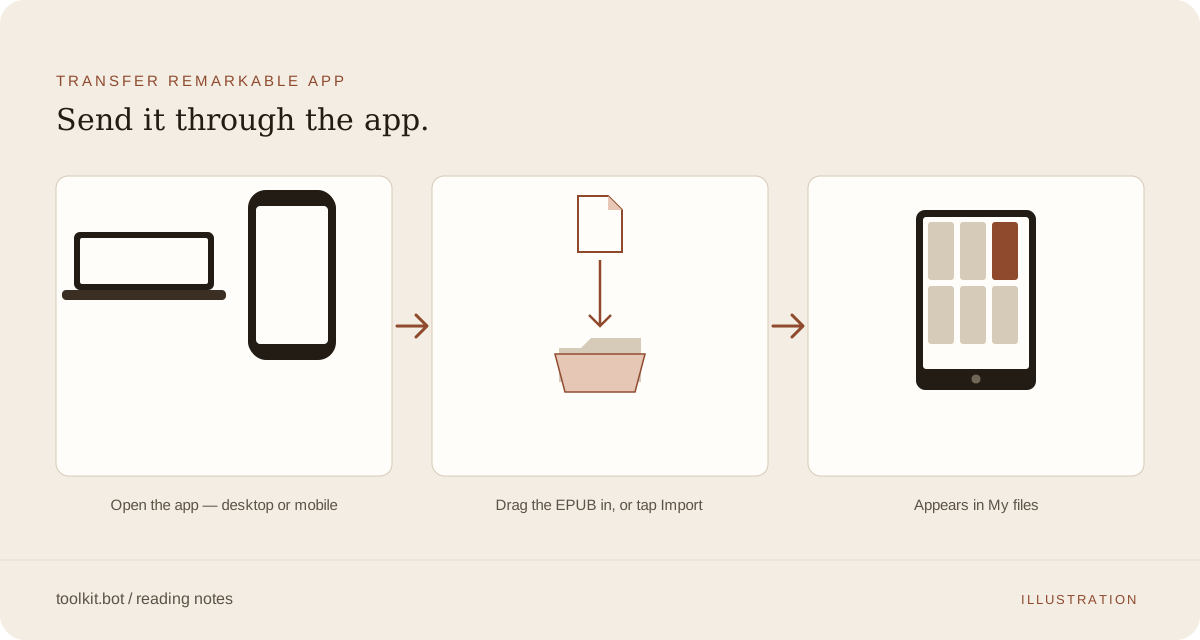
All three routes land the file in My files on the device the next time it syncs over Wi-Fi.
What to check in the EPUB preview
Single-column reports and novels convert cleanly; two-column papers go through column-aware layout analysis, and scanned pages get OCR automatically. Before you transfer, check the free preview for:
- Reading order: scroll the first chapter and confirm headers, page numbers or column breaks didn't interrupt a sentence.
- Table of contents: chapter titles should appear as a tappable outline on the device.
- Footnotes: they should sit at section ends or as linked references, not break the body text mid-paragraph.
- Font scaling: try a larger and smaller size once it's on the device; lines should wrap without orphaned single words.
Catching a problem here costs nothing — the preview is part of the free 50 pages, so you see exactly what reMarkable will show before deciding whether to unlock the rest.
Frequently asked questions
Does the reMarkable 2 support EPUB files natively, or do I need to convert first?
Yes. Since firmware 3.0 (2023) the reMarkable 2 reads EPUB natively, and the Paper Pro has supported it from launch. A PDF still opens, but only at its original fixed page size — convert it to EPUB first if you want reflowable text.
Can I annotate a converted EPUB with the pen, the same as a PDF?
Yes — highlights and freehand notes work on both PDF and EPUB. The difference is what the note is anchored to: a PDF note sits at a fixed page position, while an EPUB note is anchored to the reflowed text, so changing your font size afterwards can shift it. Set your font and size before you start annotating an EPUB.
What's the real difference between reMarkable 2 and Paper Pro for reading?
reMarkable 2 has a 10.3-inch greyscale screen, no frontlight, 8 GB of storage and weighs 403 g. Paper Pro has an 11.8-inch colour screen, an adjustable frontlight, 64 GB of storage and a faster processor, at 525 g. Paper Pro suits colour figures and reading after dark; reMarkable 2 is the lighter, more affordable option for black-and-white reading and writing.
What if my PDF is longer than 50 pages?
The first 50 pages convert and download free, with no account or card. A free account converts the whole file, five files a month, with a small toolkit.bot mark in the file. A one-time unlock gives a clean copy of one file for $0.99.
Have a PDF you want to read or annotate on your reMarkable? Convert it to EPUB first — reflowable text adapts to any font size.
Convert PDF to EPUB free →