How to Read a PDF on Kindle Scribe: Convert to EPUB First
A PDF on Kindle Scribe is a fixed page: the 10.2-inch screen shows it at nearly full size, but a two-column paper still means zooming, and the font never changes. Convert the PDF to EPUB and the text reflows to fit your font size — convert it here free for the first 50 pages, then send the result straight to your Scribe with Send to Kindle, no cable or computer needed.
Convert it here, then send it to your Kindle Scribe
Manuals, papers and scanned books stay tiny on e-ink as PDF. A reflowable EPUB fits the screen and your font size.
or drag and drop here
What changes once it's an EPUB
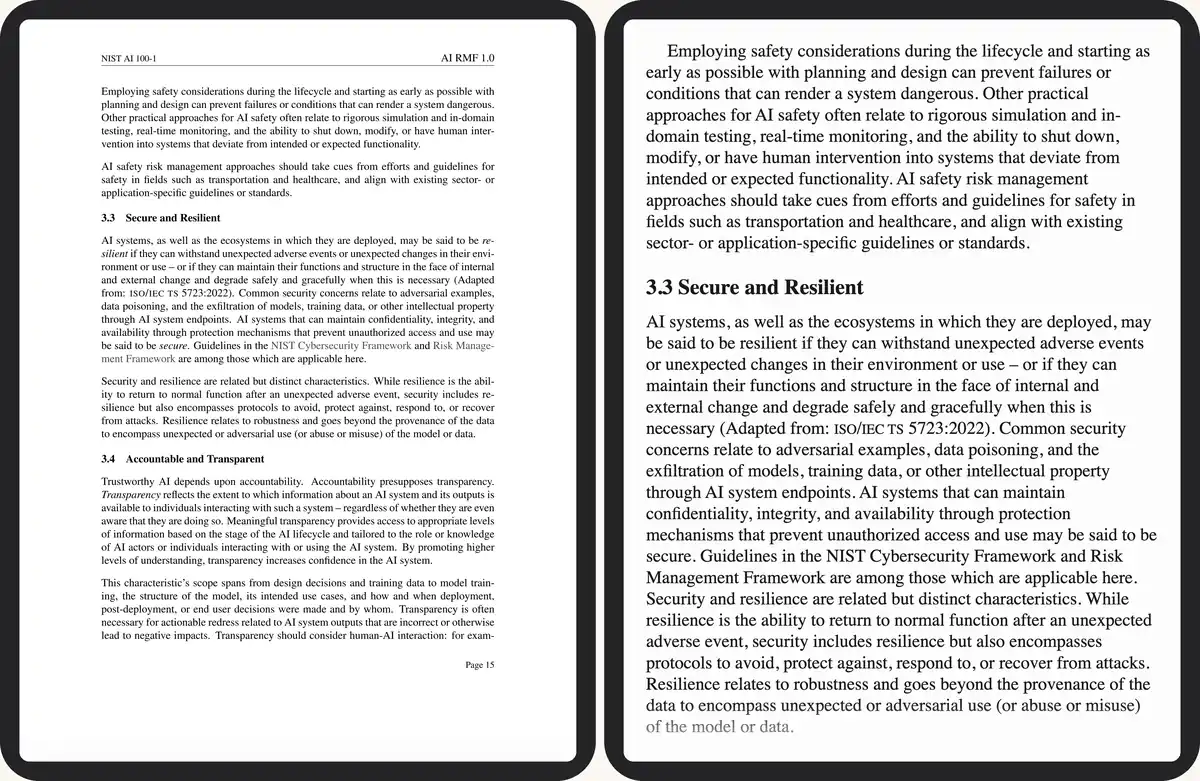
A PDF is a page, not text: the converter can't resize it without reflowing the words, so the Scribe shows it at one fixed size and leaves zooming to you. An EPUB is text the Scribe's own reading engine lays out, the same way it lays out a purchased book — font size, line spacing and margins all follow your settings.
 1
2
1
2
- The PDF page at its fixed size — the whole page fills the screen, so the type stays small.
- The same page converted to EPUB and reflowed at a comfortable reading size.
Have the PDF? Convert it here →
PDF or EPUB on Kindle Scribe? Pick by task
The Scribe is the one Kindle where reading the PDF as-is is a real option — a US Letter or A4 page is legible at 10.2 inches without zooming, and you can write directly on it. That's not true on a 6.8-inch Paperwhite, where the same page needs constant panning. EPUB still wins once you're reading for a while rather than marking one page up: the font adjusts, the line length stays comfortable, and a two-column paper reads as one column instead of four zoomed quadrants.
| Feature | PDF on Scribe | EPUB on Scribe |
|---|---|---|
| Font size | Fixed — zoom only | Adjustable |
| Text reflow | No | Yes, fills the screen width |
| Pen annotation | Write directly on the page | Sticky notes anchored to a passage |
| Word Wise | No | Yes |
| Two-column papers | Readable at 10 in, still zoomed | Linearised into one column |
For sustained reading — a book, a report, a long paper — convert to EPUB and send it to the Scribe. For marking up one specific document — a draft, a grading pass, a figure-heavy paper — keep it as a PDF and write on the page itself. Many readers do both: EPUB for the body text, native PDF for the figures.
Get the EPUB onto your Scribe
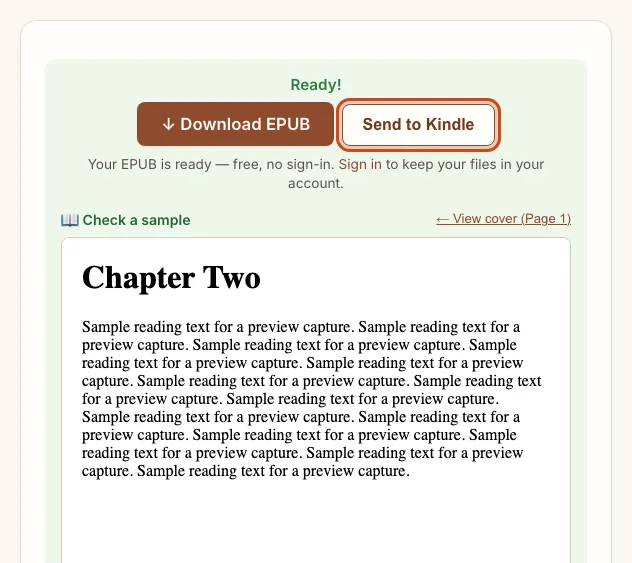
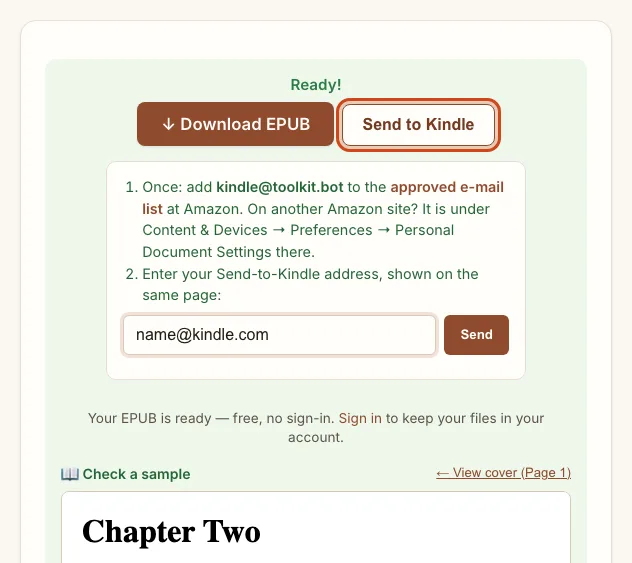
Amazon delivers an EPUB to a Scribe only through its own Send-to-Kindle system — there's no drag-and-drop EPUB support the way there is for a PDF over USB. Three ways to reach it from a downloaded EPUB:
| Method | Needs | Time | Note |
|---|---|---|---|
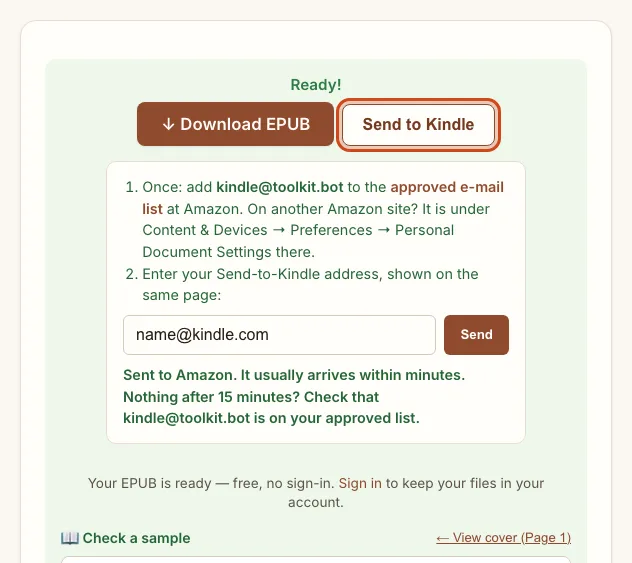
| Send to Kindle, from the result | A one-time approval at Amazon | Minutes | Works on the free preview too |
| Amazon's Send to Kindle page | The same approval, done by hand | Minutes | Upload the EPUB yourself at amazon.com/sendtokindle |
| USB | A cable and a computer | Instant | No Amazon approval needed |
Want this for your own PDF? Convert it here →
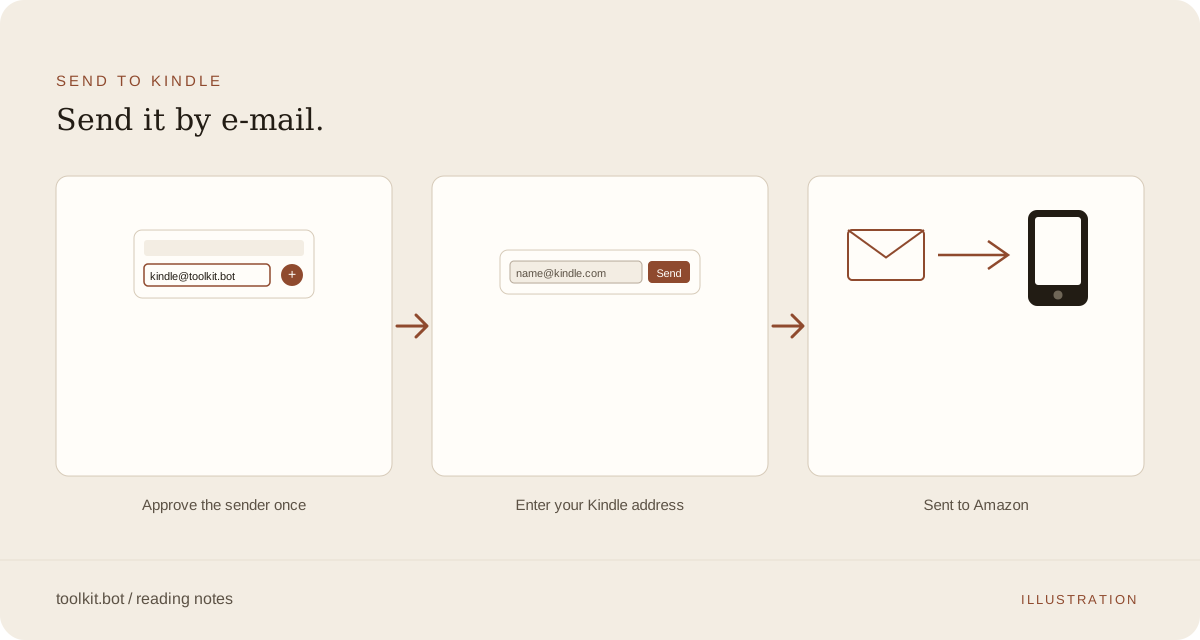
Signed in? Your Kindle address is saved after the first send — find or change it under My account.
Kindle Scribe vs other e-readers for reading
Screen size and how each device treats EPUB decide most of this — not weight or the stylus, which don't change how a converted document reads.
| Device | Screen | EPUB | |
|---|---|---|---|
| Kindle Scribe | 10.2″ | Native, little zoom | Convert, then Send to Kindle |
| Kindle Paperwhite | 6.8″ | Native, more zoom | Convert, then Send to Kindle |
| Kobo Elipsa 2E | 10.3″ | Native | Native, no conversion |
| reMarkable 2 | 10.3″ | Native | Not supported |
Stylus notes on an EPUB vs a PDF
On a converted EPUB, handwriting lives in a sticky note anchored to a passage: tap and hold, choose Note, write in the margin, and the icon stays next to that line as the text reflows under it. On a PDF, the pen writes straight onto the page at the exact spot you touch, which suits grading, circling a figure, or freehand diagrams better than any reflowed format can. Highlights, typed notes and exported notebooks work the same either way — keep a document as a PDF only when that free-form margin writing matters more than an adjustable font.
Frequently asked questions
Is there a size limit for Send to Kindle?
Yes — about 28 MB after encoding, which covers the large majority of converted EPUBs. A larger file still downloads normally; it just won't offer the Send to Kindle button.
Nothing has arrived after sending — what do I check?
Confirm kindle@toolkit.bot is on your approved e-mail list at Amazon (Content & Devices → Preferences → Personal Document Settings). Sends are usually delivered within minutes once that's done.
Does toolkit.bot keep my Kindle address?
Only if you're signed in — it's saved after your first send so you don't retype it, and you can change or remove it under My account. Sent anonymously, the address is used once and never stored.
Why can't I just copy the EPUB over by USB, like a PDF?
Kindle Scribe doesn't render EPUB at all — it reads Amazon's own formats plus PDF natively. Send to Kindle is what converts the EPUB into something the Scribe can open, whether you use the button on the result here or Amazon's own page.
Have a PDF for your Scribe? Convert the first 50 pages free, no account or card, and send the result straight there.
Choose the PDF for your Scribe ↑Related: Reading PDFs on Kobo · reMarkable EPUB guide · PDF to EPUB, step by step