How to Read Academic Papers on Kindle: Convert, Then Send It
A two-column academic PDF on Kindle means constant zooming: the page is locked to its original layout, and the font-size dial does nothing because there's no reflowable text underneath. Convert the paper to EPUB and the columns merge into one reading flow at your chosen font size. Convert it here free for the first 50 pages, then send the result straight to your Kindle with Send to Kindle, no cable or account required.
Convert the paper here, then send it to your Kindle
Two-column papers are unreadable on a Kindle as PDF. Converted, the columns become one reading line at your font size.
or drag and drop here
What a two-column PDF does to a Kindle
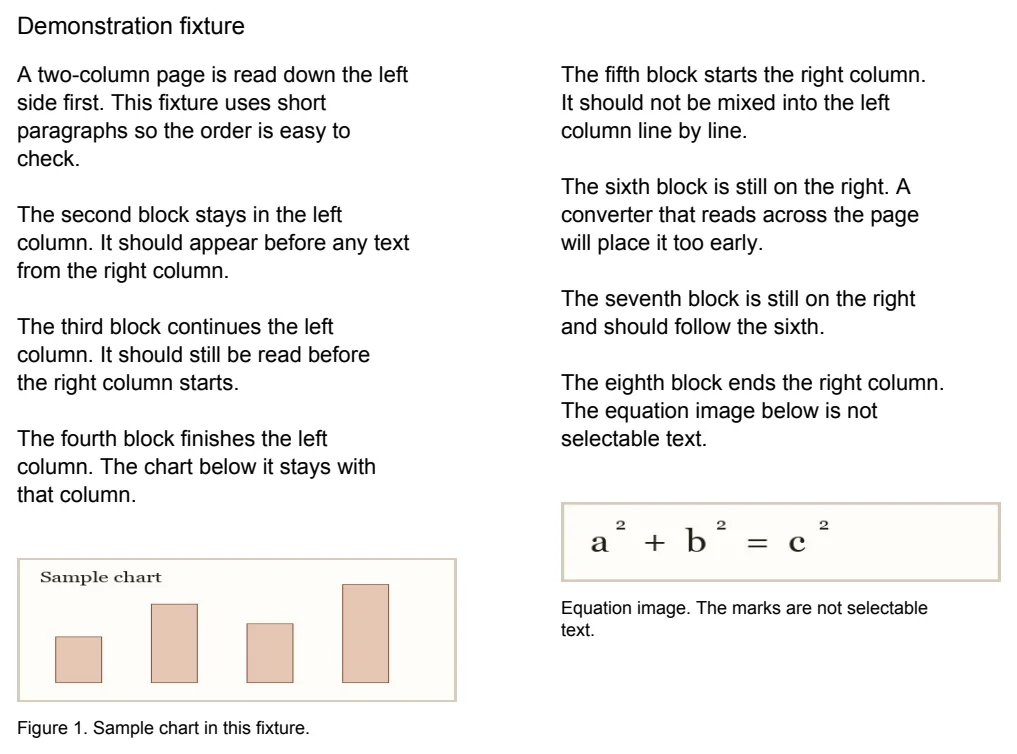
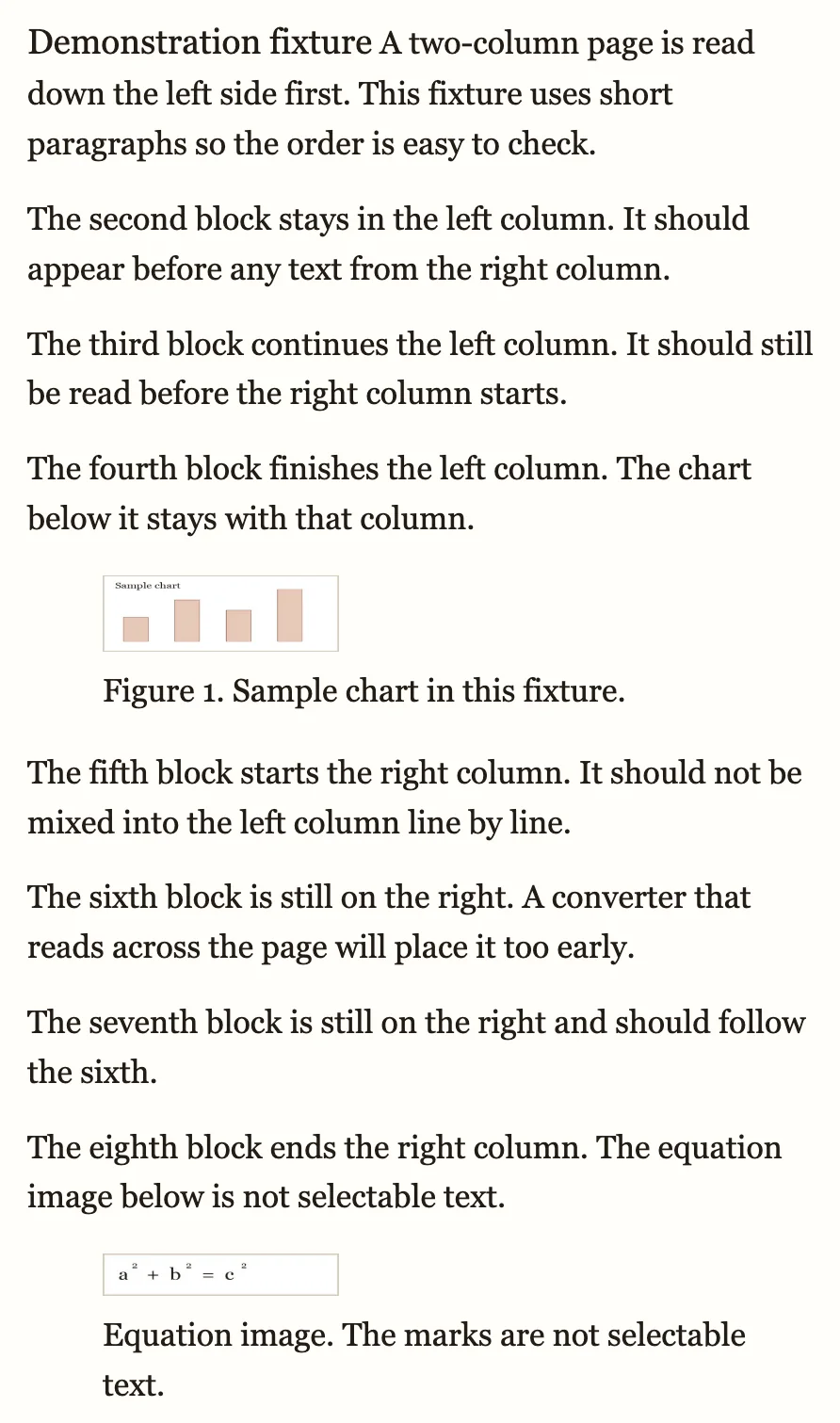
Academic PDFs lock two columns to a fixed page size, with inline citations and footnotes split across pages. On a Kindle screen the whole page shrinks until it's unreadable, and the columns don't reflow — you zoom in and scroll through each one in turn. Converting to EPUB merges the columns into one reading order and lets the text resize to your font.
 1
2
1
2
- Left column read first, then the right — in order, not interleaved
- The chart kept as an image, with its caption still attached
Have the PDF? Convert it here →
What breaks and what gets fixed
The short version — the full write-up and where to legally find the PDF are in the research-paper conversion guide.
| What the PDF does | What the conversion does |
|---|---|
| Two columns side by side, fixed to the page | Reflows them into one, left then right |
| Footnotes split across a page break | Collected per section, placed at that section's end |
| Equations and figures placed by the typesetter | Figures anchored near their first mention; a complex equation may stay as a cropped image |
| Scanned pages with no extractable text | OCR runs automatically wherever text is missing |
Send the EPUB to your Kindle
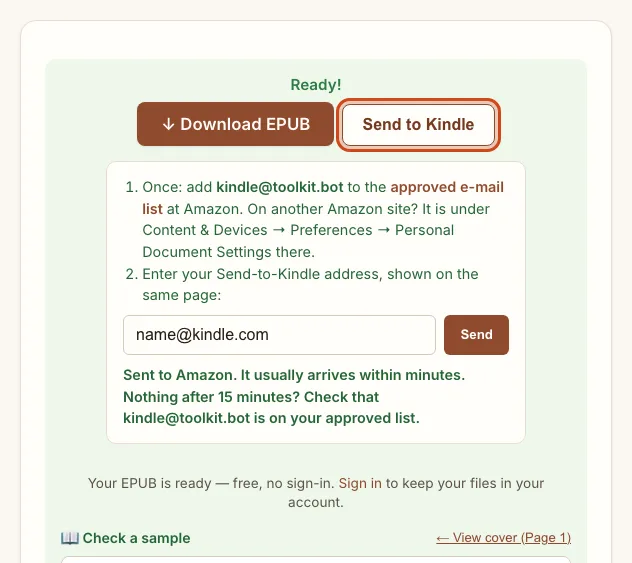
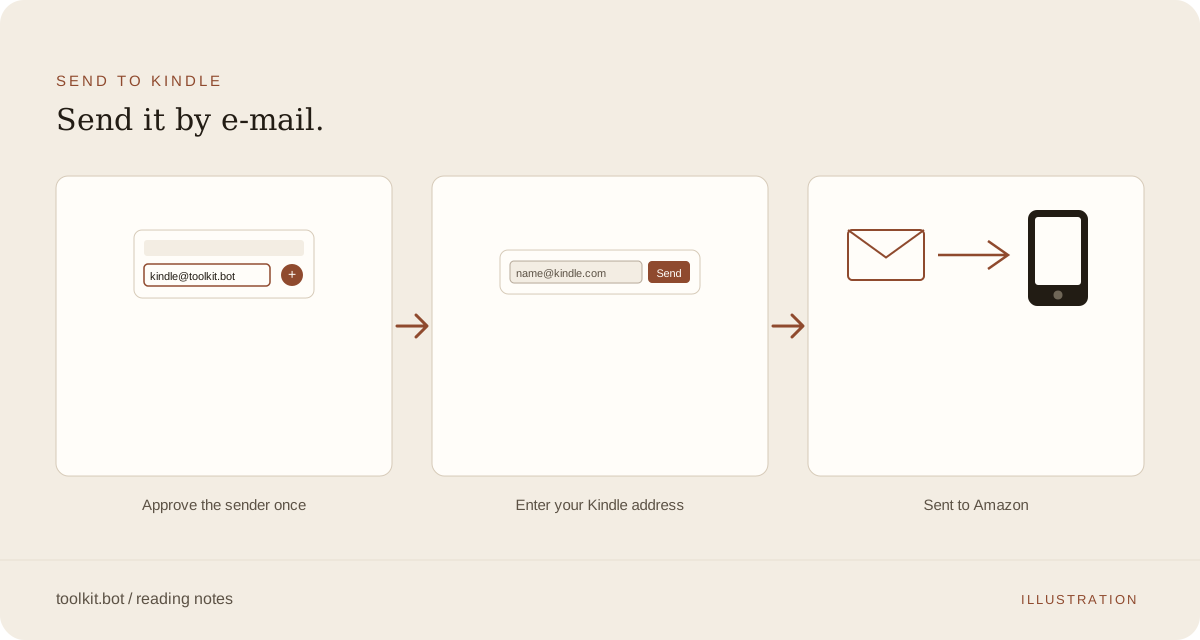
Amazon delivers an EPUB to a Kindle only through its own Send-to-Kindle system — there's no drag-and-drop EPUB support the way there is for a PDF over USB. Three ways to reach it from a downloaded EPUB:
| Method | Needs | Time | Note |
|---|---|---|---|
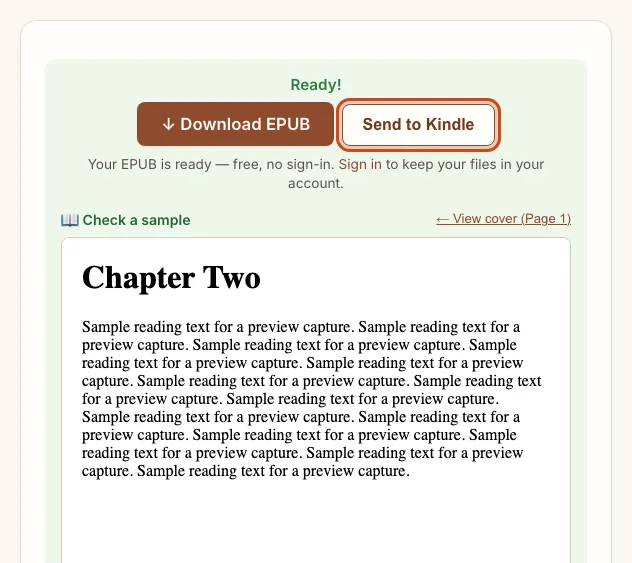
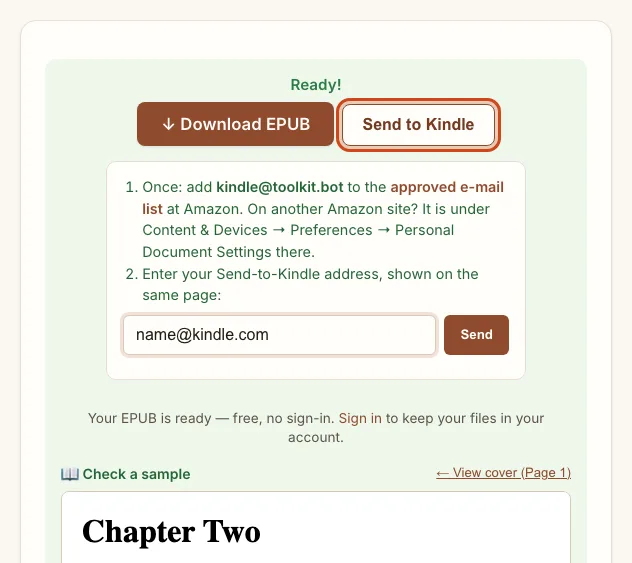
| Send to Kindle, from the result | A one-time approval at Amazon | Minutes | Works on the free preview too |
| Amazon's Send to Kindle page | The same approval, done by hand | Minutes | Upload the EPUB yourself at amazon.com/sendtokindle |
| USB | A cable and a computer | Instant | No Amazon approval needed |
Want this for your own PDF? Convert it here →
Signed in? Your Kindle address is saved after the first send — find or change it under My account.
Keep the PDF for citations and equations
EPUB pagination changes with font size and screen width, so page numbers won't match the source — cite the PDF, not the converted file. Check footnote markers, reference lists and any equation the converter couldn't reconstruct against the original; a plausible-looking paragraph can still contain an extraction error. The general PDF-on-Kindle guide covers the same keep-or-convert decision for any document, not just papers.
Frequently asked questions
Why do academic PDFs look bad on Kindle?
Academic PDFs use two-column layouts locked to a fixed page size. On a Kindle screen the whole page shrinks until it's unreadable, and the columns don't reflow — you zoom and scroll constantly. Converting to EPUB fixes this: text reflows to fill the screen at your font size, and the columns merge in correct reading order.
What happens to equations and figures?
Figures are kept and anchored near where they're first mentioned. An equation the converter can't confidently recreate as text is kept as a cropped image instead of being dropped or garbled — check it against the source PDF before citing it.
Nothing has arrived after sending — what do I check?
Confirm kindle@toolkit.bot is on your approved e-mail list at Amazon (Content & Devices → Preferences → Personal Document Settings). Sends are usually delivered within minutes once that's done.
What if my paper is longer than 50 pages?
The first 50 pages convert and download free, with no account or card. A free account converts the whole file, five files a month, with a small toolkit.bot mark in the file. A one-time unlock gives a clean copy of one file for $0.99.
Have a paper to read on Kindle? Convert the first 50 pages free, no account or card, and send the result straight there.
Choose your paper above ↑Related: Converting research papers · Reading any PDF on Kindle · Kindle Scribe guide